
Trip memories used to live in scrapbooks and dusty DVDs. Today they live in phone galleries, cloud albums, and fifteen-second reels friends swipe past in seconds. Soft dusk light, shaky walks through markets, and heavy social compression can leave those clips looking duller than the moment felt. That is why many travelers choose to upscale video before they share highlights from a weekend getaway or a long-haul adventure. Sharper frames help faces, signs, and landscapes read clearly on modern screens. This guide covers how to protect trip footage, when AI enhancement helps short travel videos, and how CapCut fits a practical, on-the-road editing habit without turning your post into a hard sell.
Why Travel Footage Softens After You Leave the Destination
Most trip clips begin on a phone held at chest height in changing light. Airport terminals, candlelit dinners, and misty morning hikes all challenge auto exposure. Stabilization and night modes help, yet they still produce files that look softer once platforms re-encode them for feeds.
Compression is the quiet villain. Instagram, TikTok, YouTube Shorts, and messaging apps shrink files so timelines load fast. Fine texture in ocean spray, temple carvings, or handwritten cafe menus disappears first. Vertical crops throw away edge detail. What looked fine on your camera roll can look blocky on a friend’s large phone or living-room TV.
There is also a storytelling cost. Travel content earns attention when viewers can feel place: a guide’s expression, the color of tiled roofs, the text on a trail marker. When those cues blur, the clip becomes generic. Preserving clarity is part of preserving memory—not only for followers, but for you months later when you want to relive the day.
What It Means to Upscale Video for Trip Memories
Simple enlarging stretches pixels and often worsens blur. Modern AI upscalers study patterns across frames and estimate plausible detail so a higher-resolution export looks sharper on HD and 4K displays. In 2026, travelers use this after the trip more than during it: select the best takes, enhance quality, then trim and caption for sharing.
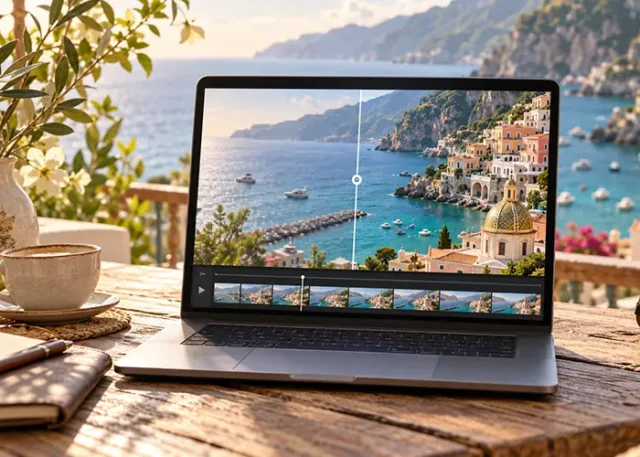
CapCut’s AI video upscaler is built for that kind of workflow. You import a clip, choose an enhancement level such as HD, UHD, or 4K, preview faces and landscapes, and export. The point is not to invent a different vacation. It is to recover readable detail from soft phone footage, older GoPro files, or family clips shot years ago on weaker sensors.
Results still depend on the source. A heavily noisy night market shot will improve less than a well-lit harbor walk. Preview before you commit, and keep the original master so the enhanced file stays a shareable derivative, not your only archive.
Capture Habits That Make Short Travel Videos Easier to Share
Better inputs need less repair. Hold the phone steady for three to five seconds on landmarks instead of constant panning. Prefer golden-hour light for portraits and street scenes. When indoors, face a window or lamp so faces stay visible without aggressive night processing.
Shoot slightly longer than the final reel. A twenty-second take gives you room to cut shaky starts and ends. Capture a clean establishing shot of the street or trail before you walk into the frame; those static seconds often upscale more cleanly than motion-heavy moments.
Separate “memory masters” from “share drafts.” Keep full-resolution originals in a dated folder or cloud album labeled by city. Export social versions after editing. That habit protects trip memories even if one platform compresses a reel harder than another.
How CapCut Fits a Traveler’s Editing Workflow
Travelers rarely carry a laptop edit suite through security. They need something that opens on a laptop after landing, or on a tablet in a hostel lounge, and finishes a short clip before the next train. CapCut is widely used for short-form travel edits: cuts, captions, music, color tweaks, and quality enhancement in one place.
A simple sequence works well. Import the best takes from a day in Lisbon or Kyoto. Trim dead air. Stabilize gentle walking shots if needed. Apply enhance quality when faces or distant architecture look soft. Add captions for place names so muted viewers still follow the story. Export at a resolution that matches where you will post.
Pairing clarity with captions matters for travel storytelling. Viewers often watch on trains or in cafes with sound off. Readable lips, signs, and subtitles keep the narrative intact. Soft color correction after an upscale can restore the warmth you remember from sunset without turning the scene plastic.
Turning Soft Phone Clips into Share-Ready Travel Highlights
Start with selection, not effects. Pick clips that already carry emotion: a first glimpse of the coast, a market vendor’s smile, steam rising from street food. Cull clips that are mostly motion blur or extreme digital zoom; those rarely become crisp no matter the tool.
When a keeper looks soft on a large screen, run AI enhancement and compare side by side. Check eyes, fabric textures, and any text in the frame—metro maps, museum labels, trail signs. If letters look invented or skin looks waxy, try a lower enhancement level or a different take.
Build a short highlight rather than dumping every minute. Thirty to sixty seconds of clear, paced moments usually outperform a long, soft dump of the whole day. Travel audiences reward atmosphere and rhythm. Clarity supports both by making each beat easy to read at a glance.
Quality Checks Before You Post from the Road or Home
Watch the export on your phone and, if possible, on a laptop. Zoom into faces and distant buildings. Look for shimmering edges, plastic skin, or strange detail on water and foliage. Fast pans across crowds can reveal temporal artifacts; prefer steadier source clips when you can.
Confirm the story still feels true. Enhancement should serve the memory, not invent a hyper-real postcard. Keep skin tones natural. Avoid heavy beauty filters on documentary-style travel moments. If a landmark plaque was illegible in the original, do not assume the AI spelled it correctly—verify or crop the text out.
Respect people in your frame. Upscaling makes faces clearer, which is great for friends who consented and risky for strangers in markets or places of worship. Blur or crop when privacy matters. Credit local creators if you feature their performances or guides.
Conclusion
Clearer short travel videos help trip memories survive compression, small screens, and the rush of the feed. Soft phone clips do not have to stay limited if you shoot with steadier habits, archive originals, and thoughtfully upscale video before you publish highlights. CapCut and similar AI tools can sit inside an everyday travel edit—trim, enhance, caption, export—so the places you loved remain readable months later. In 2026, the travelers who share lasting stories will combine honest moments with visuals that let friends and family see what the journey actually looked like.