
A blurry travel photo from an old phone. A family picture with faded colors and small scratches. Most people think these photos are beyond repair, but that is no longer true.
Image enhancer tools have improved a lot in recent years. AI can now sharpen details, remove noise, fix old damage, and improve resolution in just a few clicks. In this article, we’ll look at the best image enhancer tools for traveling in 2026.
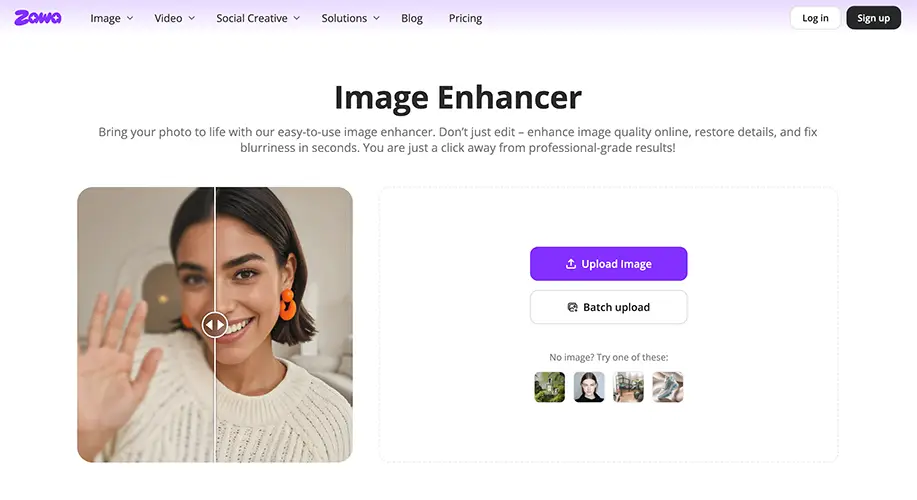
1. Zawa Image Enhancer
Zawa is one of the best image enhancer tools to restore and fix your photos in 2026. its image enhancer brings same strong results for photo repair. It helps users fix blurry, low-quality, and damaged images without needing editing skills.
The tool works fully in browser. So there is no need to install software or manage heavy files. You simply upload your image. The AI engine detects problems like blur, noise, poor lighting, or low resolution and then sorts out the image by sharpening up the details, reducing any grain and rebuilding missing quality in one easy step.
Good for:
- Product images that need sharper detail
- Scanned old prints with fading or softness
- Mobile photos with blur or low light
- Social media images that lost quality after compression
It works especially well for people who want quick and clean results without spending time learning editing software. The free plan includes daily credits for regular use, while paid plans work better for users handling larger batches of images.
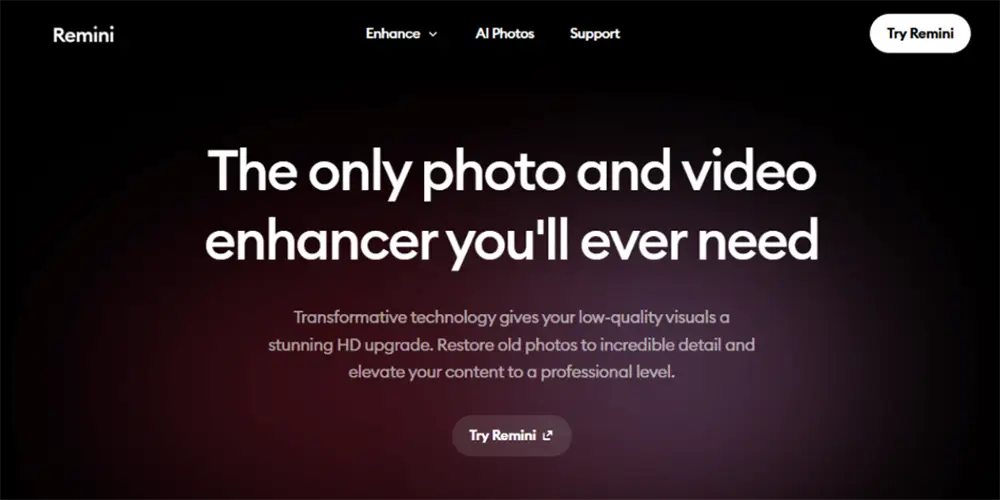
2. Remini
Remini does its best work when the main focus of the image is a person’s face. It is used a lot for restoring old family photos, childhood snaps. and portraits that have lost their detail over time. The tool is really good at rebuilding facial features like the eyes, skin texture and hair.
It is mainly built for mobile use, which makes it simple for quick edits. You upload image, let AI process it, and get a sharper result within seconds. For users working with personal memories, that speed is useful.
Good for:
- Family photos from the 80s and 90s
- Scanned portrait prints with blur or fading
- Childhood photos with weak facial detail
- Old selfies taken on low-quality phones
The main limit is that Remini focuses mostly on faces. Backgrounds, product images, and landscape photos do not get the same level of improvement.
3. Adobe Lightroom
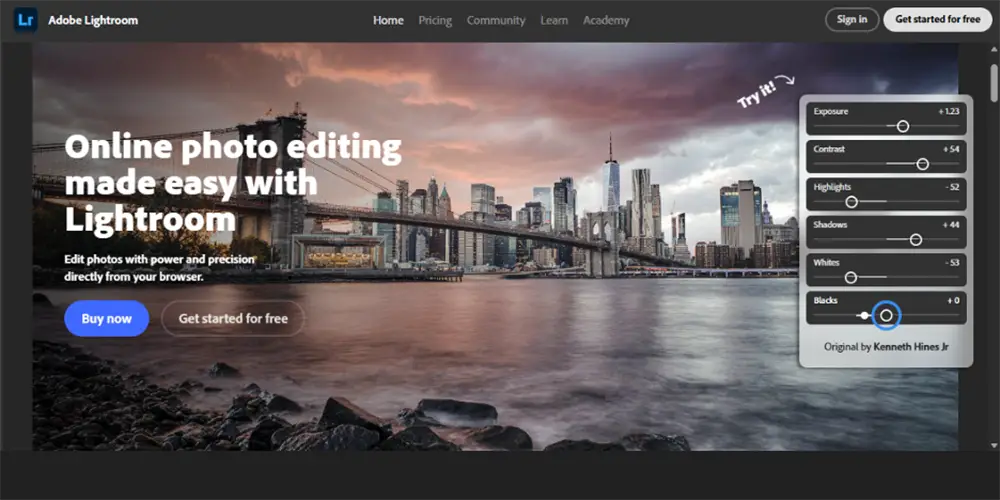
Most people know Lightroom as a photo editing tool. But it also helps fix common image problems. It handles color correction well, brings back detail from dark shadows, and improves low-light photos where noise becomes noticeable.
AI Denoise is one of its most useful features for grainy photos. It removes unwanted noise without making images look too soft or losing small details that matter. Masking tools also help a lot because you can improve one area of a photo without changing everything else.
Good for:
- Recovering shadow and highlight detail
- Fixing white balance and color casts
- Removing grain from low-light images
- Editing large batches of photos at once
The downside is that Lightroom takes time to learn. It feels more like a professional editor than a quick repair tool. It also works better for users who already understand photo editing.
4. Wink
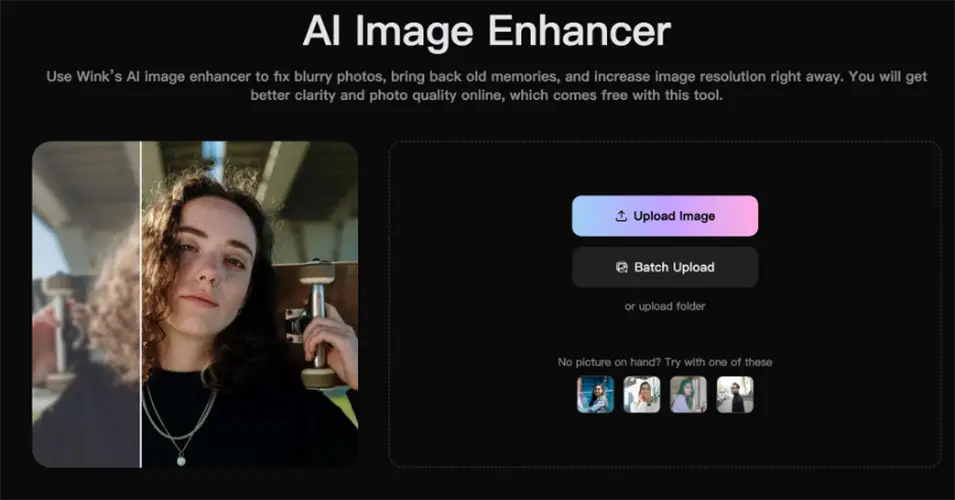
Wink is a browser-based editor that combines image enhancer with general editing tools. It covers basic fixes like blur reduction, noise cleanup, and brightness correction from one simple dashboard.
The layout is beginner-friendly and easy to understand. Users do not need editing experience to improve everyday photos. It works well for quick cleanup before posting images online or using them for small projects.
Good for:
- Quick fixes on everyday photos
- Social media images before posting
- Basic blur and brightness correction
- Users who want simple all-in-one editing
5. GIMP with G’MIC Plugin
GIMP is one of the most popular free alternatives to Photoshop. It works well for basic editing on its own. G’MIC plugin adds stronger repair tools. These include sharpening, scratch removal, and manual restoration filters.
This setup is useful for users who want full control instead of automatic AI enhancement. You can work on specific damaged areas by hand, which helps when automatic tools create unnatural results.
Good for:
- Manual scratch and dust removal
- Repairing damaged scanned photos
- Full control over sharpening and cleanup
- Users comfortable with advanced editing tools
The biggest drawback is time. GIMP takes more effort and the learning curve is much steeper. It is powerful, but not ideal for fast results.
Comparison Table
| Tool | Platform | Free Option | Best For | Skill Level |
| Zawa Image Enhancer | Browser | Yes (daily credits) | Quick AI fixes, product images | Beginner |
| Remini | Mobile | Yes (limited) | Face and portrait restoration | Beginner |
| Adobe Lightroom | Desktop + Mobile | Trial only | Color, exposure, noise removal | Intermediate |
| Wink | Browser | Yes (limited) | General all-in-one repair | Beginner |
| GIMP + G’MIC | Desktop | Fully free | Manual repair with full control | Advanced |
Final Thoughts
Fixing a damaged or low-quality image used to take hours. Most tools now do it in less than a minute. A photo that looked useless now may still be worth saving. For personal photos and quick fixes, Zawa or Remini can handle most cases for free. Both are simple to use and work fast.
For color-focused edits or batch work, Lightroom is a better choice. It gives more control and better results for larger projects.
A few things help before you start.
- Always use an original file. Do not use a saved again or compressed copy.
- Fix noise before sharpening. Sharpening first can make grain look worse.
- Check image at 100% zoom before export. This helps you catch small problems.
- Save final file as PNG. This helps avoid recompression marks.